
By Pritibhukhan Borah, Computer Science Engineer · Last updated: 2026-11-02
What was tested
The files in this demo were generated for testing; they are not recordings from a phone or camera.
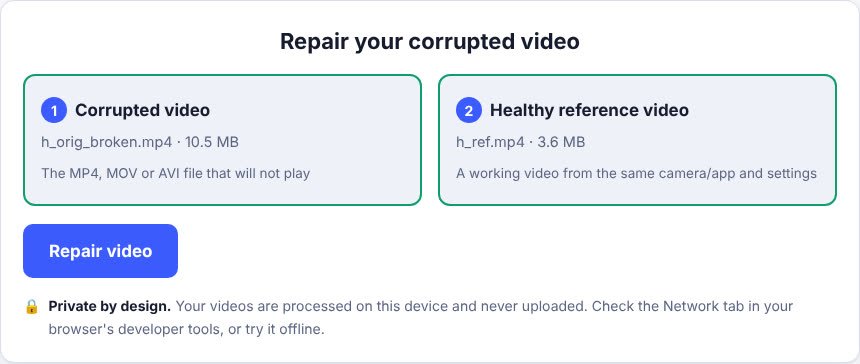
- Damaged file: a 30-second test-pattern video, H.265 (HEVC) 1280x720 at 24 fps with stereo AAC audio, 10.5 MB. Its index (the
moovbox) was cut off, which is what an interrupted recording leaves behind. - Reference file: a separate 3.6 MB clip generated with the same codec, resolution, frame rate and audio settings, showing different content.
- Environment: the tool on this website, run in Chromium 153.0.8010.12 on a cloud Linux machine, with the files chosen through the normal file pickers.
Step 1: the original error
Asking FFmpeg to read the damaged file gives:
[mov,mp4,m4a,3gp,3g2,mj2] moov atom not found
h_orig_broken.mp4: Invalid data found when processing input
This is the typical symptom: the file is large, but no player can open it. See what the error means.
Step 2: choose the damaged file and a reference
Step 3: repair
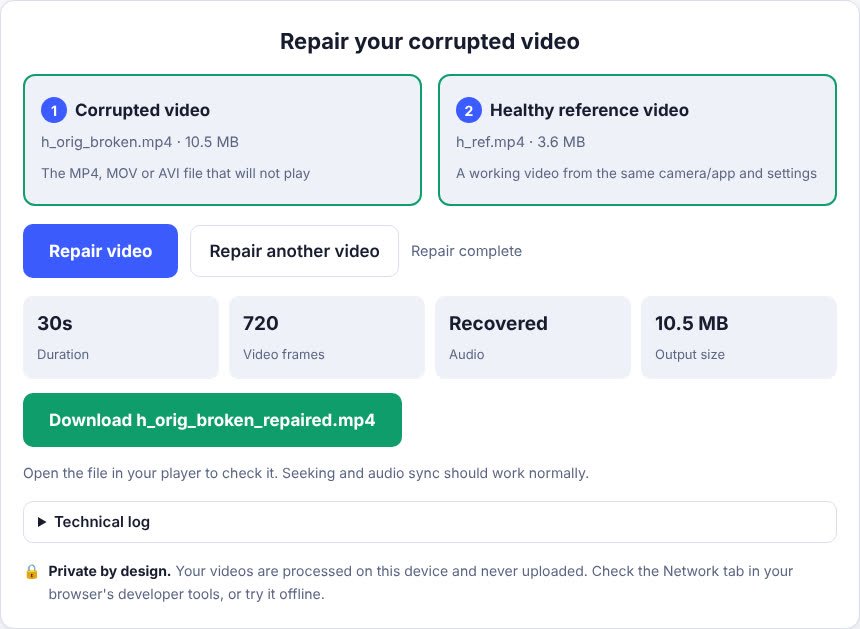
After clicking "Repair video" the repair finished in about 3.5 seconds. The technical log shows what the tool did:
Corrupted: h_orig_broken.mp4 (10.5 MB)
Reference: h_ref.mp4 (3.6 MB)
📖 Reading reference file structure…
   codec hvc1, NAL length 4 bytes, 24.000 fps, 3 NAL signature(s) learned
📦 Found media data at byte 44 (10.5 MB)
🔍 Scanning for video frames…
🔊 Scanning for AAC audio (48000 Hz, 2 ch)…
   1408 audio frames recovered (100.0% of the non-video data)
Recovered 720 video frames (30s at 24.00 fps).
Recovered 1408 AAC audio frames (30s).
Step 4: check the repaired file

| Check | Result |
|---|---|
| Opens in FFmpeg | Yes (it failed before the repair) |
| Video frames | 720 of 720 |
| Audio frames | 1408 of 1408 |
| Decode errors reading the whole file | 0 |
| Decoded video compared with the original | Identical (same MD5 checksum) |
| Decoded audio compared with the original | Identical (same MD5 checksum) |
| Reported duration | 30.016 s (the original reports 30.000 s; the difference comes from the audio track) |
What this does and does not show
It shows that when the picture and sound data are intact and only the index is missing, the tool rebuilds a file that decodes to exactly the same video and audio. It does not show how the tool behaves on every camera: real devices can write data differently, and files with damaged picture data cannot be fully recovered. See the test report for what has and has not been checked.
Related
Frequently asked questions
Is this a real phone video?
No. It is a generated test pattern with the same structure as camera footage, used so the result can be verified exactly against the undamaged original.
Can I repeat this myself?
Yes. Any MP4 with a missing index and a healthy clip recorded with the same settings will work the same way. Use the repair tool on the home page.